
Google Analytics Tracking Events in GA4, A Practical Setup Guide With GTM and gtag.js
Set up google analytics tracking events in GA4 with GTM or gtag.js, validate in DebugView, and turn events into conversions and funnels.

Google analytics tracking events in GA4 works best when you standardize a small event model, instrument via GTM or gtag.js, then validate in DebugView before you mark anything as a conversion.
- Use a lightweight GA4 event taxonomy: consistent
event_name, a short list of parameters, and a clear mapping from events to reports. - Choose one implementation path (GTM or gtag.js) per surface area, then validate with Preview and DebugView until payloads are stable.
- Only promote “decision” events to conversions; keep “diagnostic” events for analysis, funnels, and drop-off debugging.
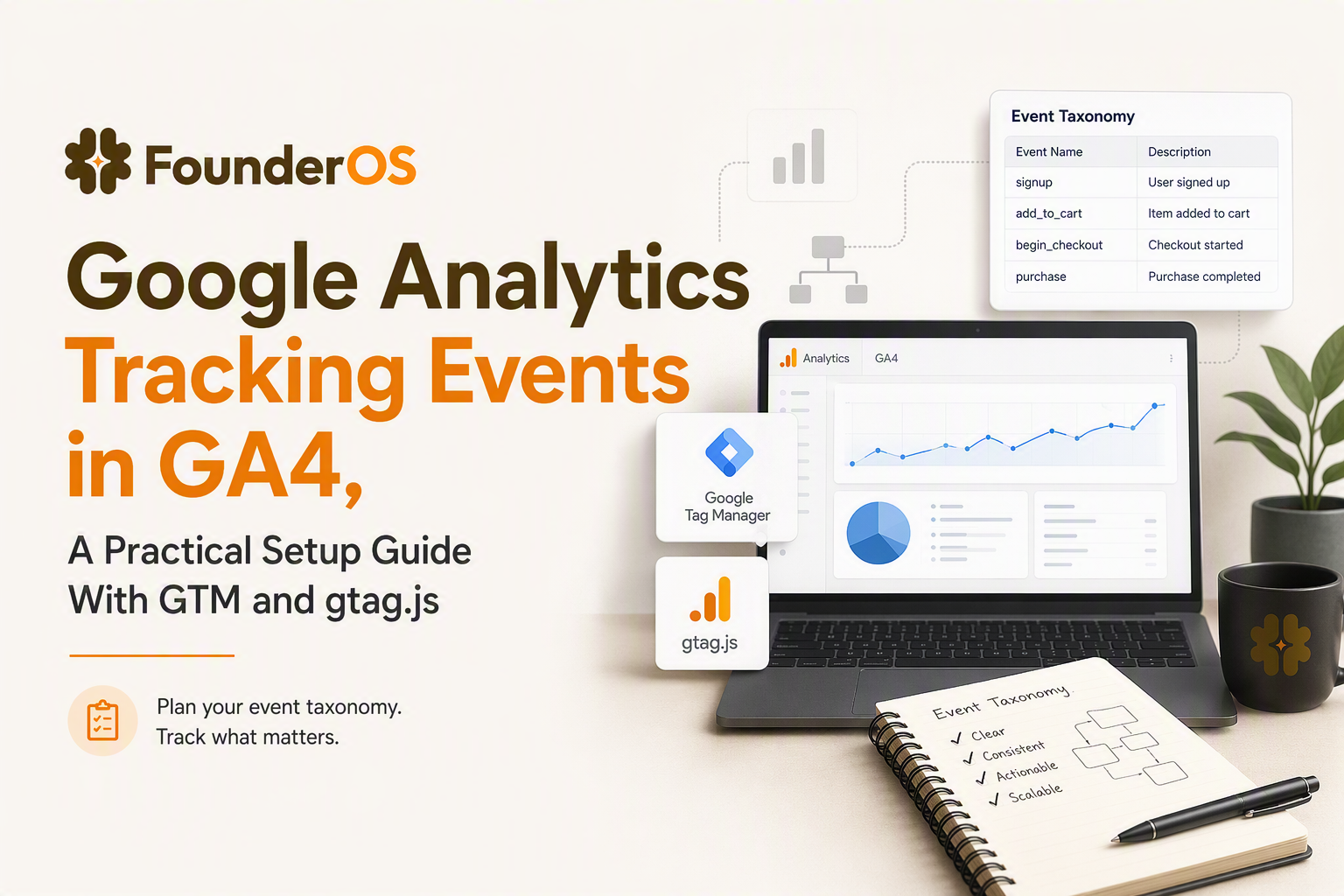
Define the GA4 event model you’ll actually use
A workable GA4 model for google analytics tracking events ties each event and parameter to a specific reporting outcome so you do not collect data you cannot use.
Start with a 2-layer taxonomy: diagnostic vs decision events
In practice, most teams over-track UI interactions and under-track business outcomes. A simple governance trick is to classify every event before you implement it:
- Decision events: actions that represent value, intent, or progress (examples:
sign_up,generate_report,request_demo,checkout). These are candidates for conversions. - Diagnostic events: actions that explain behavior but should not be conversions (examples:
clickon navigation,scroll,video_start).
When we audit early-stage B2B SaaS analytics, the pattern is clear: teams that keep conversions limited to decision events end up with cleaner acquisition and activation reporting, and fewer “conversion inflation” debates later.
Specify event_name and parameter standards before you touch tags
Use these standards to keep google analytics tracking events consistent across GTM and gtag.js:
- event_name: lowercase, underscores, verb_noun (
request_demo,submit_form), avoid spaces. - Required parameters (recommended):
page_location,page_title(GA4 auto-collects on page_view; include only if you need to override).link_urlfor outbound/download.form_id,form_namefor forms.cta_text,cta_locationfor key CTAs.
- Parameter naming: snake_case; keep values short and stable (do not send full DOM text blobs).
- PII rule: never send email, full name, phone, or free-text fields as parameters. If you need identity, use GA4’s recommended approaches, and keep any user identifiers internal and policy-safe.
Map data to GA4 surfaces so you know what you’re buying
This mapping avoids collecting “interesting” events that never show up in decisions:
- Realtime and DebugView: payload validation, parameter presence, firing frequency.
- Reports and Explorations: aggregated event trends and breakdowns (by source/medium, device, landing page).
- Conversions: a short list of decision events that represent lead or revenue milestones.
- Funnel exploration: step-by-step drop-offs from acquisition to activation. If you are building a true user funnel, define those steps first, then instrument only what the steps require.
Google Tag Manager setup for GA4 event tracking
Google analytics tracking events via Google Tag Manager is the fastest path when you want non-engineers to manage click, form, and scroll instrumentation with version control and preview testing.
Workflow map for a clean GTM build
- Install GA4 Configuration: create a GA4 Configuration tag with your Measurement ID and fire on all pages.
- Decide your trigger strategy: use built-in click triggers for basic elements, and CSS selectors or data attributes for critical CTAs.
- Create GA4 Event tags: one tag per business event, with stable parameters.
- Preview and validate: GTM Preview first, then GA4 DebugView.
- Publish with notes: tag the release with what events changed and why.
Clicks: track only the clicks you can act on
For high-signal click tracking, prefer tracking “important clicks” rather than every click. A practical rule: if you cannot imagine a funnel step or segment that uses the click, do not track it. For deeper patterns, see click analytics.
Example: track a “Request demo” CTA
- Trigger: Click, “Some Clicks”, where
Click Textequals “Request demo” (better: where adata-ctaattribute equalsrequest_demo). - GA4 Event tag:
event_name:request_demo_clickparameters:cta_text: {{Click Text}}cta_location: headerlink_url: {{Click URL}}
Forms: separate “start” from “submit”
Forms are where google analytics tracking events often go wrong because teams record only a submit. If you also track starts, you can distinguish “no intent” from “high intent but blocked by UX”.
- form_start: fire on first interaction (focus) with the form.
- form_submit: fire on successful submission (confirmation state, thank-you view, or a reliable callback).
Example parameters:
form_id: lead_form_mainform_name: Book a demoform_variant: v2
Scroll, outbound, and downloads: keep them diagnostic
These events are useful for diagnosing content and landing-page friction, but rarely deserve conversion status.
- scroll: use GA4 Enhanced Measurement if it matches your needs; otherwise create a custom scroll depth event (ex: 50%, 90%) for long-form pages.
- outbound_click: trigger when Click URL does not contain your domain; send
link_urland optionallylink_domain. - file_download: trigger by URL extension (pdf, docx); send
file_nameandlink_url.
Governance checklist for GTM releases
- All GA4 Event tags have a stable
event_nameand no free-text parameters. - No PII in parameters.
- Trigger conditions match a selector or attribute that will not change weekly.
- Preview validation passed on desktop and mobile viewports.
- Release notes include the event list changed and the intended report usage.
Direct gtag.js setup when you don’t want GTM
Google analytics tracking events via direct gtag.js is the cleaner option when you need precise control in a web app, want fewer moving parts, or are instrumenting SPA routes and product actions tied to code.
Base pattern for a custom event payload
Keep payloads consistent and explicit. This example shows a decision event you might later mark as a conversion:
gtag('event', 'request_demo', {
  cta_location: 'pricing_page',
  plan: 'pro',
  page_path: location.pathname
});
Two practical standards we use to avoid messy data: (1) keep parameter keys consistent across platforms (web app, marketing site), and (2) avoid sending raw UI strings that change with copy updates.
SPA considerations: send route changes and avoid duplicates
Single-page apps commonly double-count events because the UI re-renders. The minimum approach:
- Fire a
page_viewon route change (if you are not relying on GA4’s automatic history change measurement). - Deduplicate key actions with an idempotency key in your app logic (for example, only send
form_submitafter the API returns success). - Attach stable identifiers as non-PII parameters (example:
workspace_id_hash), only if compliant with your policies.
When gtag.js beats GTM
- Product actions: events like “created project”, “invited teammate”, “connected integration” are easier to fire in code than to infer from DOM clicks.
- Stricter versioning: analytics changes ship with app releases, code-reviewed.
- Fewer vendor dependencies: some teams prefer fewer tag containers for security review.
Validate and debug events without guessing
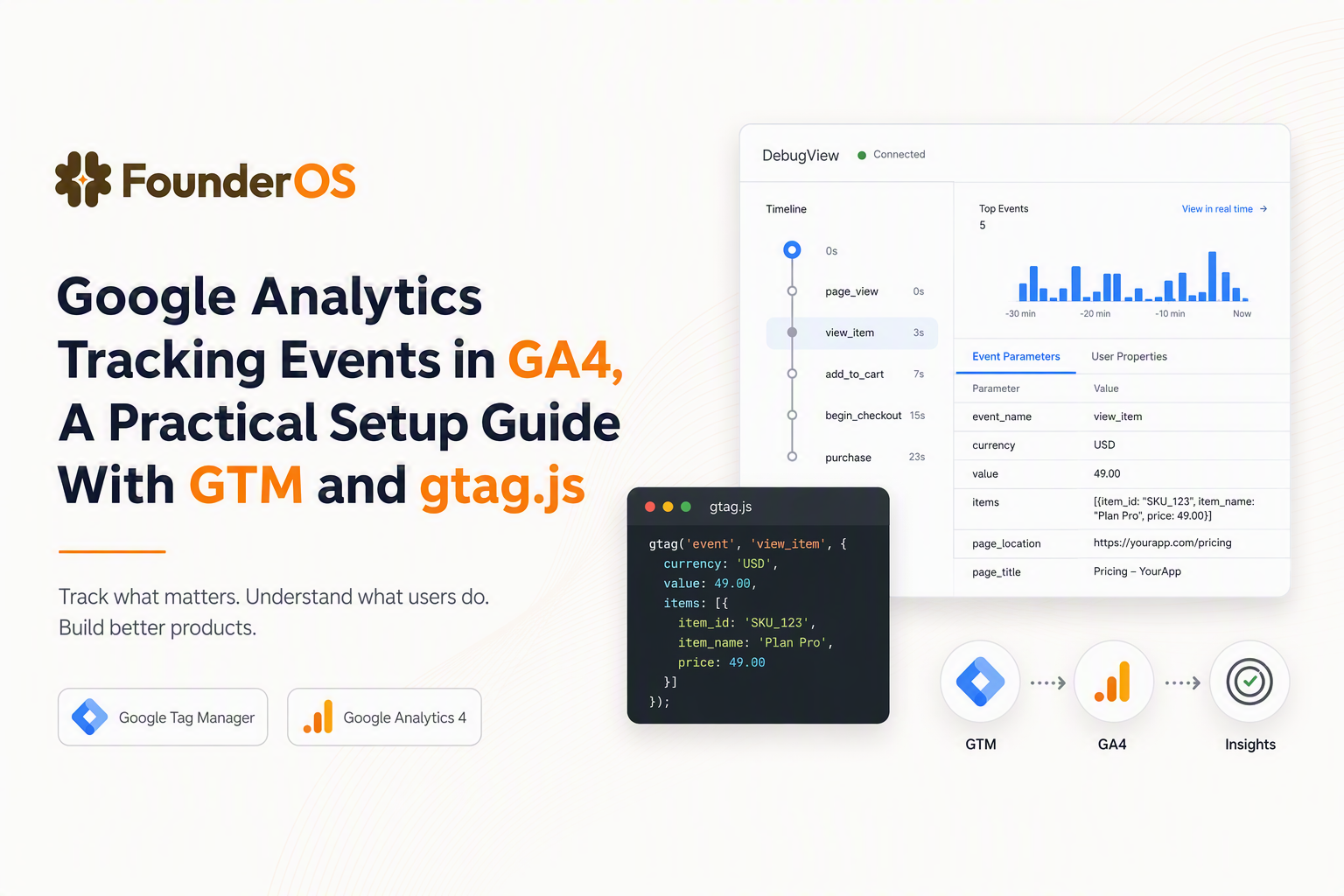
Correct google analytics tracking events always show up consistently in GTM Preview and GA4 DebugView with the expected parameters and without duplication.
Validation workflow that catches 90% of issues
- GTM Preview (if using GTM): confirm the trigger fires once, and the GA4 Event tag sends the right
event_name. - Tag Assistant: validate the page is actually running the tags you think it is. Use Google’s Tag Assistant where appropriate: Tag Assistant.
- GA4 DebugView: verify the event appears with all parameters and correct types. DebugView is the fastest way to see parameter payloads without waiting for standard reports.
- Realtime report: confirm volume and top event names during a controlled test window.
- Next day check: confirm the event is queryable in Explorations and (if needed) registered as a custom dimension/metric.
What surprised our team was how often “missing events” were actually “unregistered parameters”: the event appears in DebugView, but the parameter is not available for breakdowns until you create the custom definition.
Symptom to cause to fix table
| Symptom | Likely cause | Fix |
|---|---|---|
| Event appears in GTM Preview but not in GA4 DebugView | Wrong Measurement ID, blocked tag, consent mode preventing send | Verify GA4 config tag, check consent state, confirm network requests in DevTools |
| Event appears twice per action | Both Enhanced Measurement and custom tag firing, SPA re-render triggering twice | Disable duplicate source, add once-only guards in code, narrow GTM trigger |
| Parameters visible in DebugView but not in reports | Custom definition not created, or wrong scope | Create custom dimension/metric in GA4 Admin and wait for new data to populate |
| Outbound clicks missing | Link navigation happens before tag send | Use “wait for tags” / link click delay in GTM, or send via gtag then navigate |
| Form submits tracked but conversions look inflated | Submit event fires on validation errors or multiple times | Fire only on success state (thank-you view or API success) and dedupe |
| Implementation choice | Best for | Tradeoff |
|---|---|---|
| GTM | Marketing site events, quick iteration, non-engineer ownership | More moving parts, risk of trigger drift if selectors change |
| gtag.js | In-app product events, SPA control, code-reviewed governance | Requires engineering time for changes |
FAQ
How many GA4 events should we track for a B2B SaaS?
Track a small set that supports decisions: typically 5 to 15 decision events (signup, activate, key feature used, request demo, purchase) plus a limited set of diagnostic events for debugging. If an event does not support a funnel step, segment, or investigation, skip it.
Should we mark clicks and scrolls as conversions?
Usually no. Click and scroll events are best kept diagnostic so conversion reporting reflects real outcomes like submitted forms, activated accounts, or qualified leads.
Why do parameters show in DebugView but not in reports?
GA4 can display incoming parameters in DebugView immediately, but reporting breakdowns require you to register the parameter as a custom definition in GA4 Admin. After registration, only new data collected going forward will populate standard reports and Explorations.
How do we connect GA4 events to product activation work?
Use GA4 to validate the instrumentation and top-of-funnel attribution, then mirror the same taxonomy in a product analytics layer so events are tied to user profiles and segments. That is where activation cohorts and feature adoption analysis become easier to operationalize.
After you have google analytics tracking events stable in GA4, a practical next step is to mirror the same event taxonomy inside Founder OS so product actions are tied to user profiles and live segments, and you can turn “tracked” into “acted on” with GTM reporting and onboarding flows that improve activation.
Read Next
View all
Guided Product Tour Blueprint to Ship a Measurable Activation Flow in 72 Hours
A guided product tour blueprint to ship in 72 hours: define the promise, map steps to events, segment entry rules, and measure activation.

Product Onboarding Best Practices That Improve Activation, Not Just Completion Rates
Learn product onboarding best practices to reduce time-to-value, improve activation, and measure what matters with practical SaaS examples.
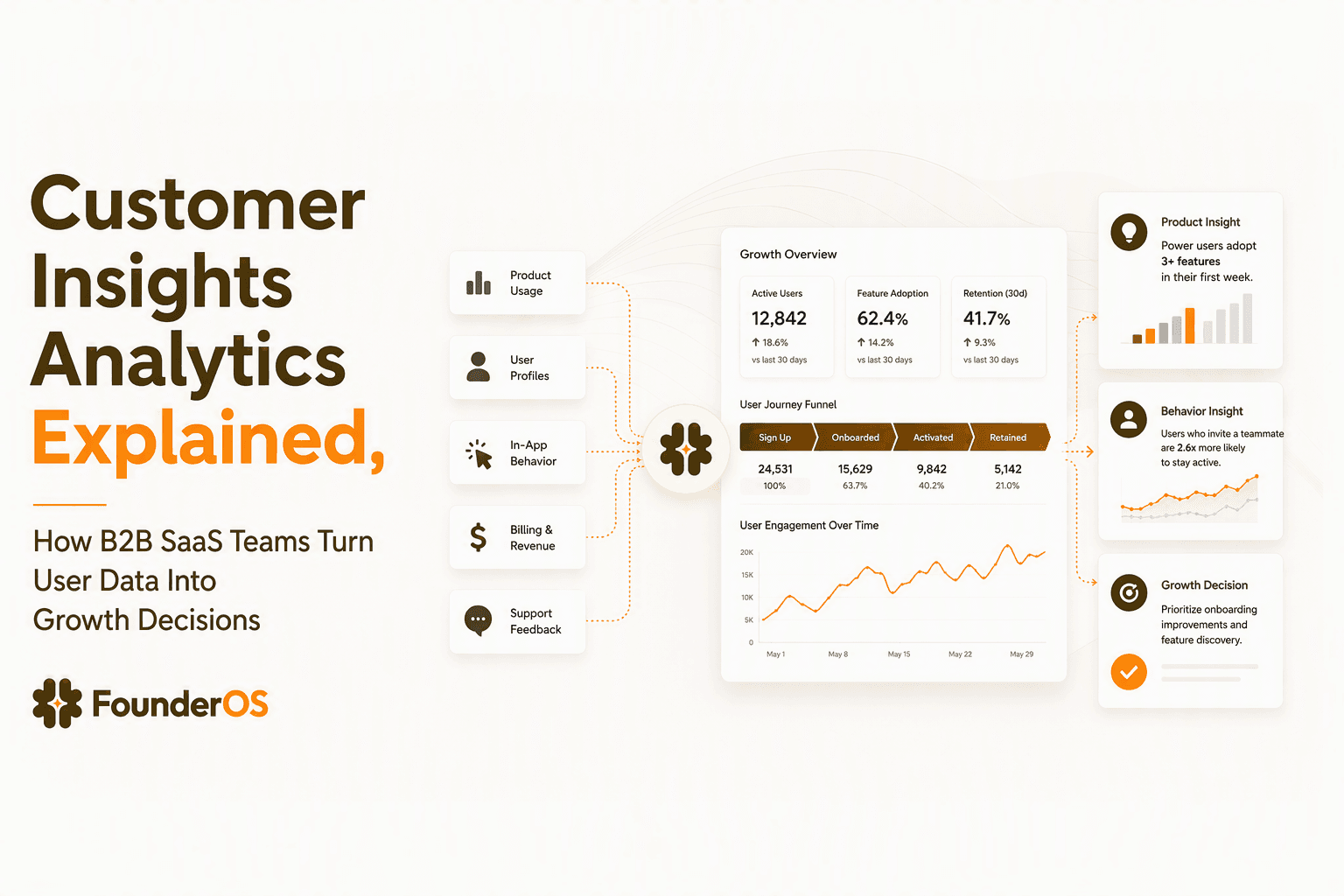
Customer Insights Analytics Explained, How B2B SaaS Teams Turn User Data Into Growth Decisions
Learn how customer insights analytics helps B2B SaaS teams connect user behavior, product data, and revenue signals to make growth decisions.